Environment Setup for OpenCV Applications
Introduction
This article provides instructions on how to set up the environment for OpenCV applications on Toradex Systems-on-Modules (SoMs) using the Toradex BSP.
By the end of this guide, you will have built a reference image suitable for developing and running OpenCV applications on your Toradex SoM.
This article complies with the Typographic Conventions for Toradex Documentation.
OpenCV
OpenCV (Open Source Computer Vision Library) is an open-source library focused on Computer Vision and Machine Learning. This library is widely used as a foundational component in many computer vision applications, including robotics, augmented reality, and advanced image processing systems.
OpenCV provides a set of algorithms and utilities for image and video analysis, making it a popular choice among developers building vision-based solutions. The library is designed for efficiency and portability, supporting multiple platforms and programming languages.
To further enhance performance, OpenCV can leverage hardware acceleration through backends like OpenCL. By leveraging underlying hardware capabilities, this integration can significantly improve execution speed, especially in compute-intensive or large-scale applications.
OpenCL
OpenCL (Open Computing Language) is an open standard for parallel programming across heterogeneous computing systems. OpenCL provides a unified framework for distributing workloads across these devices, allowing applications to take advantage of available computational resources. This is particularly useful for tasks such as image processing and Machine Learning, where parallel execution can greatly improve performance.
Some Toradex SoMs support OpenCL, enabling hardware-accelerated OpenCV workloads. Refer to the datasheet and documentation of the target SoM to confirm support.
Prerequisites
- A configured build environment as described in the Host Machine Setup for Building with Yocto documentation
- Read the Build a Reference Image with Yocto Project article
Configure and Build the Image
OpenCV packages are provided by the meta-freescale layer. This layer should be available by default in your setup after following the instructions in the Build a Reference Image with Yocto Project guide.
Edit the local.conf file to build a Yocto-based image with OpenCV and OpenCL support. First, configure the target machine for your Toradex SoM by uncommenting the appropriate MACHINE variable.
MACHINE ?= "verdin-imx95"
After setting up the device, include the OpenCV recipe with OpenCL support in the image:
IMAGE_INSTALL:append = " opencv mali-imx"
PACKAGECONFIG:append:pn-opencv = " opencl"
Some Toradex SoMs support OpenCL and GPU acceleration and enabling these features requires additional configuration. For example, on the Verdin iMX95, the build configuration must include the mali-imx package from meta-freescale layer to enable GPU acceleration.
For more details, refer to your SoM datasheet and documentation for specific requirements and supported features.
Note that building an image for an NXP-based SoM requires to read and accept the NXP®/Freescale EULA available in layers/meta-freescale/EULA. Add the following line to your local.conf file to accept the license:
ACCEPT_FSL_EULA = "1"
Finally, build the image with the following command to include the OpenCV packages. Then, generate the toolchain SDK for application development:
$ bitbake tdx-reference-multimedia-image
$ bitbake tdx-reference-multimedia-image -c populate_sdk
After the build completes, flash the generated image to your Toradex SoM using Toradex Easy Installer.
Refer to Linux SDKs documentation for more information about the usage of populate_sdk and the generated SDK toolchain for cross-compilation of applications targeting the Toradex SoM.
Demonstration
Execute the SDK toolchain setup script to configure your development environment:
$ ./deploy/sdk/tdx-xwayland-glibc-x86_64-Reference-Multimedia-Image-cortexa55-verdin-imx95-toolchain-7.5.0.sh
Source the SDK environment setup script in your terminal to update the environment variables for cross-compilation:
$ source environment-setup-cortexa55-tdx-linux
Finally, compile and execute the provided OpenCL test code and OpenCV application examples using the SDK to verify that your environment is correctly set up for OpenCV development with OpenCL support.
Check OpenCL Support
The code below checks for OpenCL availability and prints out the device information if OpenCL is supported and enabled:
#include <opencv2/core/ocl.hpp>
#include <opencv2/core.hpp>
#include <iostream>

int main() {
    // Check if OpenCL is available
    if (cv::ocl::haveOpenCL()) {
        std::cout << "OpenCL is available!" << std::endl;

        // Enable OpenCL usage in OpenCV
        cv::ocl::setUseOpenCL(true);

        if (cv::ocl::useOpenCL()) {
            std::cout << "OpenCL is enabled and being used." << std::endl;

            // Print device info
            cv::ocl::Device dev = cv::ocl::Device::getDefault();
            std::cout << "Device Name: " << dev.name() << std::endl;
            std::cout << "Vendor: " << dev.vendorName() << std::endl;
            std::cout << "Version: " << dev.version() << std::endl;
        }
        else {
            std::cout << "OpenCL is available but not enabled." << std::endl;
        }
    }
    else {
        std::cout << "OpenCL is NOT available on this system." << std::endl;
    }

    return 0;
}
Compile and transfer the application to the board using the following commands:
$ $CXX opencl-test.cpp -o opencl-test `pkg-config --cflags opencv4` -lopencv_core
$ scp opencl-test root@<SOM_IP_ADDRESS>:/root/
Finally, execute the generated binary to verify OpenCL support:
# ./opencl-test
OpenCL is available!
OpenCL is enabled and being used.
Device Name: Mali-G310 r0p0
Vendor: ARM
Version: OpenCL 3.0 r50p0-00eac0.696f9a6.5b3e6ed89e3f1ff89e76976c68cb71cf
OpenCV Application Example
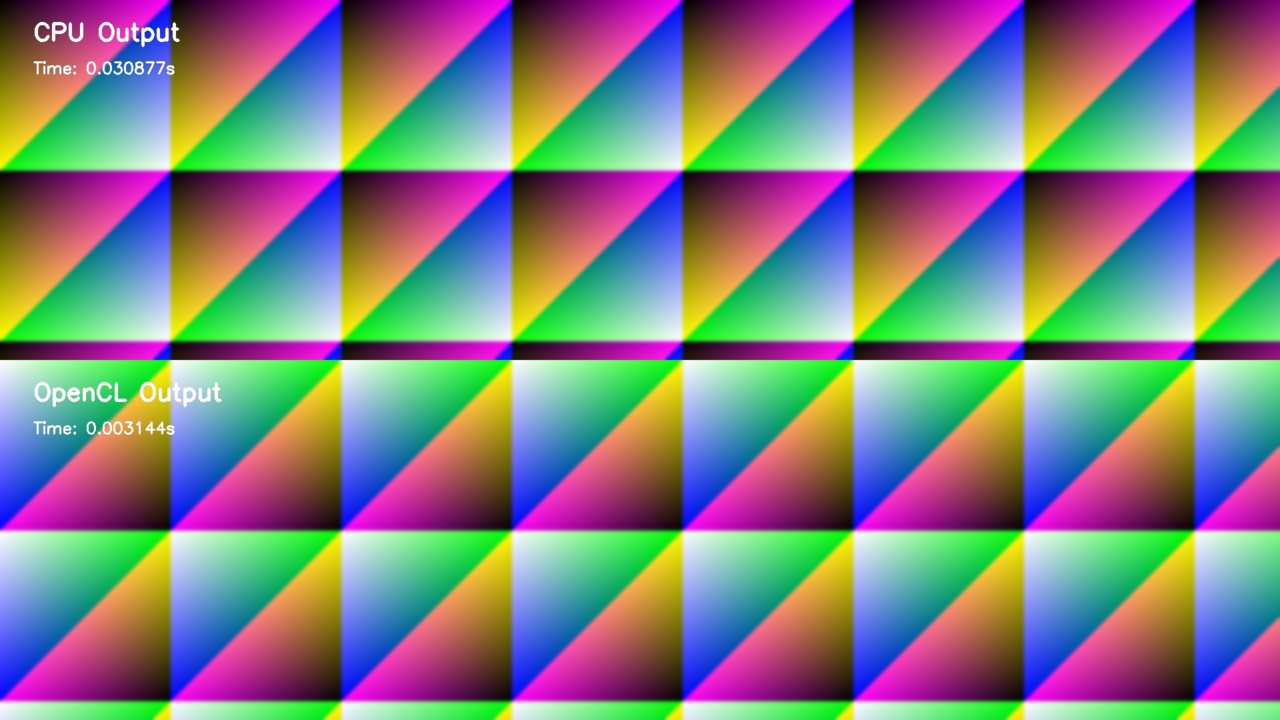
The code above demonstrates a simple OpenCV application that performs Gaussian blur on an image using both CPU and OpenCL. It measures the execution time for both implementations and displays the results in a combined image.
#include <opencv2/core/ocl.hpp>
#include <opencv2/opencv.hpp>
#include <iostream>

#define WIDTH  1920
#define HEIGHT 1080
#define SAVED_IMAGE_NAME "opencv-app-image.jpg"

int main() {
    std::cout << "CPU Threads: " << cv::getNumThreads() << std::endl << std::endl;

    cv::ocl::setUseOpenCL(true);
    std::cout << "OpenCL enabled: " << cv::ocl::useOpenCL() << std::endl << std::endl;

    cv::ocl::Context context;
    if (context.create(cv::ocl::Device::TYPE_GPU)) {
        cv::ocl::Device device = context.device(0);
        std::cout << "Using GPU!" << std::endl;
        std::cout << "Device: " << device.name() << std::endl << std::endl;
    }


    // CPU version
    cv::Mat cpu_image = cv::Mat::ones(HEIGHT / 2, WIDTH, CV_8UC3) * 127;
    cv::Mat cpu_output;

    for (int y = 0; y < cpu_image.rows; y++)
        for (int x = 0; x < cpu_image.cols; x++)
            cpu_image.at<cv::Vec3b>(y, x) = cv::Vec3b(x % 256, y % 256, (x+y) % 256);

    double time_cpu;
    time_cpu = cv::getTickCount();
    cv::GaussianBlur(cpu_image, cpu_output, cv::Size(15, 15), 0);
    time_cpu = (cv::getTickCount() - time_cpu) / cv::getTickFrequency();


    // OpenCL version
    cv::Mat opencl_image_gradient = cv::Mat::ones(HEIGHT / 2, WIDTH, CV_8UC3) * 127;
    cv::UMat opencl_image;
    cv::UMat opencl_output;

    for (int y = 0; y < opencl_image_gradient.rows; y++)
        for (int x = 0; x < opencl_image_gradient.cols; x++)
            opencl_image_gradient.at<cv::Vec3b>(y, x) = cv::Vec3b(x % 256, y % 256, (x+y) % 256);

    cv::bitwise_not(opencl_image_gradient, opencl_image_gradient);
    opencl_image_gradient.copyTo(opencl_image);

    double time_opencl;
    time_opencl = cv::getTickCount();
    cv::GaussianBlur(opencl_image, opencl_output, cv::Size(15, 15), 0);
    time_opencl = (cv::getTickCount() - time_opencl) / cv::getTickFrequency();


    // Results
    std::cout << "CPU time: " << time_cpu << " sec" << std::endl;
    std::cout << "OpenCL time: " << time_opencl << " sec" << std::endl;

    // Converting GPU result back to Mat to display the image
    cv::Mat opencl_output_mat;
    opencl_output.copyTo(opencl_output_mat);

    // Label images
    cv::putText(
        cpu_output,
        "CPU Output",
        {50, 60},
        cv::FONT_HERSHEY_SIMPLEX,
        1.2,
        {255, 255, 255},
        3
    );

    cv::putText(
        cpu_output,
        "Time: " + std::to_string(time_cpu) + "s",
        {50, 110},
        cv::FONT_HERSHEY_SIMPLEX,
        0.8,
        {255, 255, 255},
        2
    );

    cv::putText(
        opencl_output_mat,
        "OpenCL Output",
        {50, 60},
        cv::FONT_HERSHEY_SIMPLEX,
        1.2,
        {255, 255, 255},
        3
    );

    cv::putText(
        opencl_output_mat,
        "Time: " + std::to_string(time_opencl) + "s",
        {50, 110},
        cv::FONT_HERSHEY_SIMPLEX,
        0.8,
        {255, 255, 255},
        2
    );


    // Combine images
    cv::Mat combined_image;
    cv::vconcat(cpu_output, opencl_output_mat, combined_image);

    cv::imwrite(SAVED_IMAGE_NAME, combined_image);


    // Show images
    cv::namedWindow("OpenCL Demo", cv::WINDOW_NORMAL);
    cv::setWindowProperty("OpenCL Demo", cv::WND_PROP_FULLSCREEN, cv::WINDOW_FULLSCREEN);

    cv::imshow("OpenCL Demo", combined_image);

    std::cout << std::endl << "Displaying for 10 seconds..." << std::endl;

    cv::waitKey(10000);
    cv::destroyAllWindows();

    return 0;
}
Compile and transfer the application to the board using the following commands:
$ $CXX opencv-app.cpp -o opencv-app `pkg-config --cflags opencv4` -lopencv_core -lopencv_imgcodecs -lopencv_imgproc -lopencv_highgui
$ scp opencv-app root@<SOM_IP_ADDRESS>:/root/
Finally, execute the generated binary to see the results:
# ./opencv-app
CPU Threads: 6

OpenCL enabled: 1

Using GPU!
Device: Mali-G310 r0p0

CPU time: 0.0313998 sec
OpenCL time: 0.512397 sec

Displaying for 10 seconds...
Output image generated by the application:
Next Steps
The generated build also includes the opencv-samples package, which provides additional OpenCV application examples. These samples are located in the /usr/share/opencv4/samples/ directory on your SoM and can be used to further explore OpenCV features and capabilities.