Application Development - Chromium Example
Introduction
This article describes the main steps for developing web applications that run in Chromium on Torizon OS devices using the Torizon IDE Extension. It presents a walkthrough of the development process, from the project template to a working application running full screen on the target device.
The Chromium Web App template provides a containerized Chromium browser that loads a local HTML page. It removes the need to set up the browser container, the Wayland compositor, and the device permissions by hand.
This is a multi-container template. Besides the application container, it also brings up a Weston container on the device, because Chromium needs a Wayland compositor to render on the display.
This article covers the following topics:
- Create a project from the Chromium Web App template.
- Install the development dependencies.
- Details about the sample.
- Install packages in the container.
- The containers the template runs on the device.
- Customize the Chromium startup.
- Deploy and debug projects.
- Next steps.
This article complies with the Typographic Conventions for Torizon Documentation.
Prerequisites
- Get a Toradex Hardware with Torizon OS installed.
- Set up the Torizon IDE Extension Environment.
- Connect a Torizon OS Target Device.
Create a New Project
Create a new project from the Chromium Web App template. The Torizon IDE Extension automatically generates the project folder and the essential files.
Install the Development Dependencies
The Chromium Web App template requires development dependencies on the host machine to build and run the project.
During the first load of a new project, the notification Do you want to check for dependencies on your system? appears. Click Yes to proceed with the dependency check.
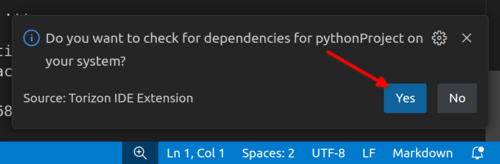
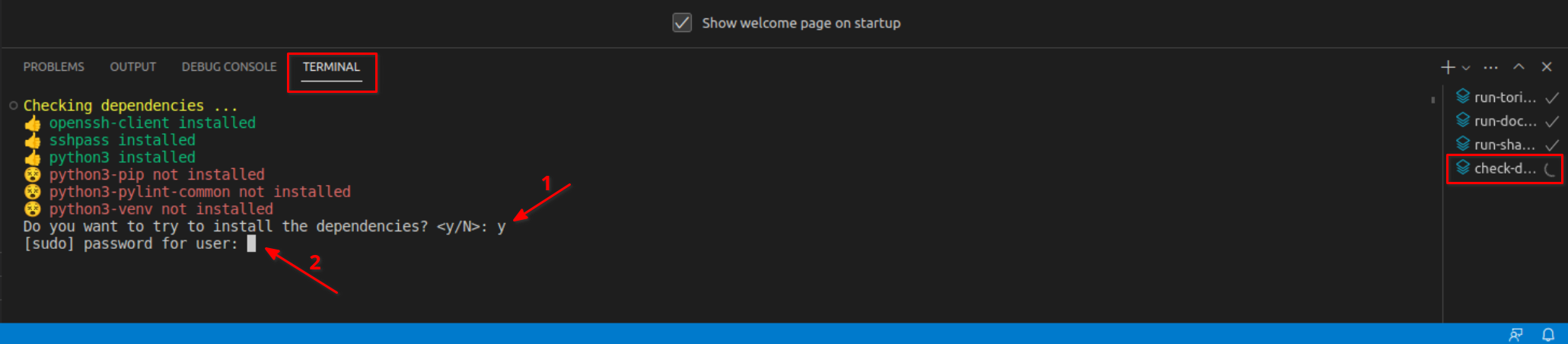
The extension then triggers the check-deps task, which checks the necessary local packages (on the development host, such as SDKs) to build the project. For more information, refer to the Check Host Machine Dependencies Required by the Project documentation.
If the notification does not appear, trigger the check-deps task manually. For more information, refer to the Workspace - Tasks documentation.
The task then requests the sudo password. Confirm the installation of the dependencies.
The Sample
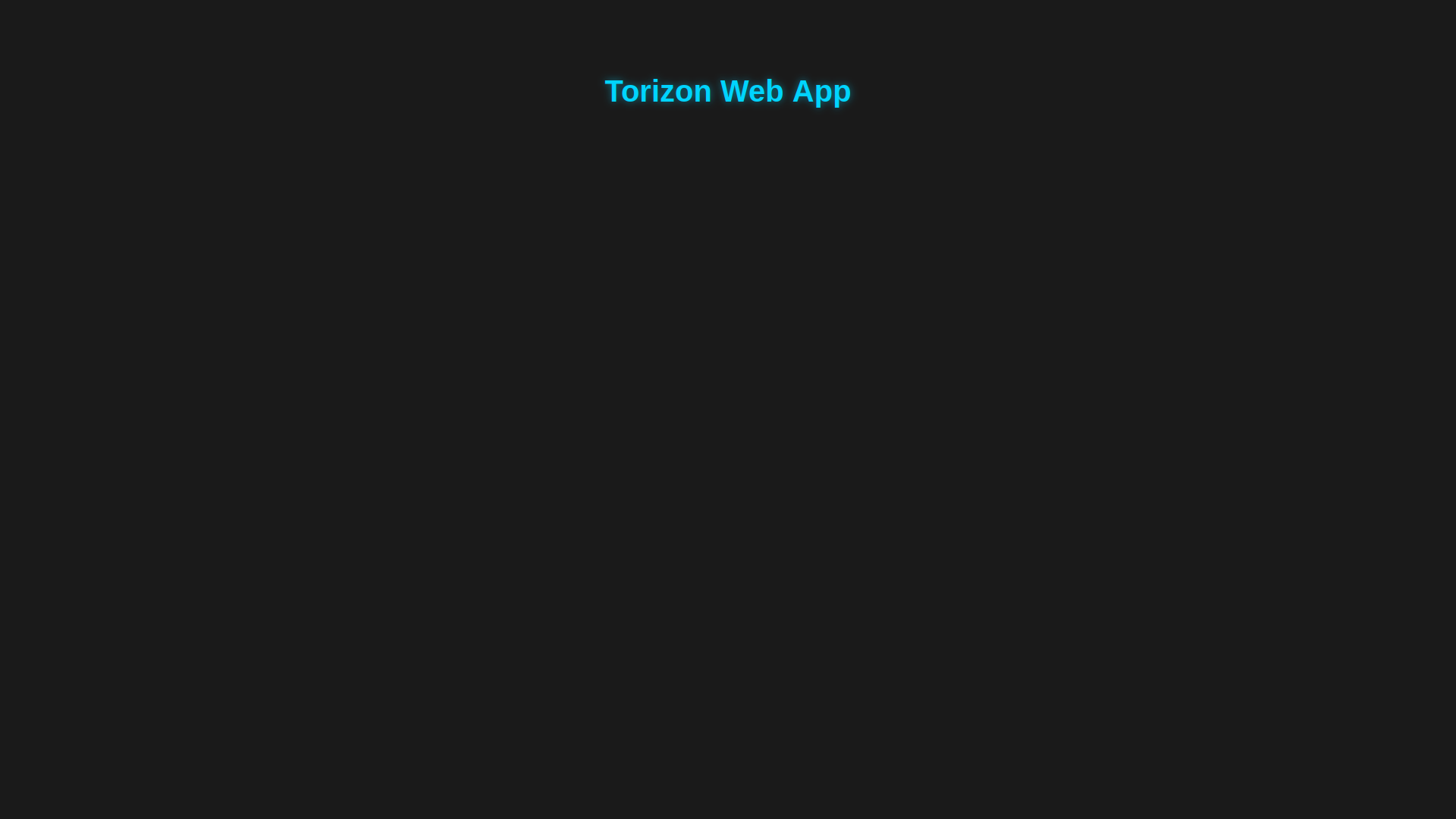
The sample is a static web page that Chromium loads from the container filesystem. It renders a Torizon Web App heading and prints Hello Torizon! to the browser console.
The following files define the application and its container:
.
├── docker-compose.yml
├── Dockerfile
├── src
│   ├── css
│   │   └── style.css
│   ├── index.html
│   └── js
│       └── app.js
└── torizonPackages.json
Three files reference the path src/index.html: docker-compose.yml, the cdp-ready task in .vscode/tasks.json, and the Local Debug configuration in .vscode/launch.json. Renaming or moving this file requires updating those references as well.
The command key in docker-compose.yml also hardcodes the /home/torizon/app application root. Changing the torizon_app_root workspace setting requires updating that command to match.
Source Code
The web application starts from the src/index.html file:
<!DOCTYPE html>
<html>
<head>
<meta charset="UTF-8">
<title>Torizon Web App</title>
<link rel="stylesheet" href="css/style.css">
</head>

<body>

<h1>Torizon Web App</h1>

<script src="js/app.js"></script>

</body>
</html>
The src/js/app.js file holds the application logic:
function main() {
    console.log("Hello Torizon!");
}

main();
Packages Installation
Web assets require no extra packages. If the application needs additional Debian packages in the container, add them to the torizonPackages.json file.
For detailed information, refer to the Add Packages, Libraries, Tools and Files documentation.
How the Template Runs Chromium
Container Image
The Dockerfile builds the application container on top of the Toradex Chromium container, and copies the src directory into the application root inside the container:
FROM \
torizon/chromium${GPU}:${BASE_VERSION} AS deploy
...
COPY ./src ${APP_ROOT}/src
WORKDIR ${APP_ROOT}
ENV APP_ROOT=${APP_ROOT}
USER torizon
ENTRYPOINT ["/usr/bin/start-browser"]
The extension resolves GPU from the torizon_gpu workspace setting and APP_ROOT from the torizon_app_root workspace setting, which selects the correct GPU-accelerated image variant for the module in use.
To learn more about the browser containers that Toradex provides, including GPU acceleration, video decoding, and font installation, refer to the Web Browser / Kiosk Mode with Torizon OS documentation.
Services
The docker-compose.yml file declares the services below, where <container> stands for the container name from the project creation step:
| Service | Profile | Purpose |
|---|---|---|
<container> | release | Runs Chromium and loads the application from file:///home/torizon/app/src/index.html |
<container>-debug | debug | Runs Chromium with --remote-debugging-port enabled, starting on about:blank |
<container>-debug-proxy | debug | Runs alpine/socat to forward the debug port from the device network interface to Chromium |
weston | release and debug | Provides the Wayland compositor. The Chromium services wait until this service reports healthy |
Peripheral Access
The Chromium services share a common configuration that grants the browser access to the display, input devices, GPU, and D-Bus, and that sets shm_size: 256mb for the Chromium renderer processes. The template applies these permissions out of the box, so the sample runs without any manual change.
For background on how containers get access to hardware on Torizon OS, refer to the Peripheral Access Overview documentation.
Command-Line Arguments
The Toradex Chromium container provides the start-browser script, which serves as the container entry point. It launches Chromium in kiosk mode by default and reads its arguments from the command key of the service. To change the startup behavior, edit that key in docker-compose.yml.
The last positional argument is the address to load. Replace the file:// URL with an http:// or https:// address to load a page that another container or a remote server hosts:
services:
  chromium-container:
    <<: *chromium-base
    image: ${DOCKER_LOGIN}/chromium-container:${TAG}
    command: ["http://localhost:8080"]
    profiles:
      - release
Additional Chromium switches go in the same list, before the address. For the optional startup flags that start-browser accepts, and for guidance on Chromium switches, refer to the Web Browser / Kiosk Mode with Torizon OS documentation.
The debug profile service starts Chromium on about:blank and navigates to the application page after the debugger is ready. When the address of the release service changes, change the cdp-ready task in .vscode/tasks.json accordingly, so that debug sessions load the same page.
For general information on sending arguments to containerized applications, refer to the Pass Arguments to Containerized Applications documentation.
Deploy and Debug
After configuring the project, deploy and debug it using the Torizon IDE Extension. For more information, refer to the Remote Deploy and Debug Projects documentation.
The template ships four debug configurations in the Run and Debug tab (Ctrl+Shift+D). Torizon arm64, Torizon arm32, and Torizon amd64 build the debug container, deploy it, and attach the debugger over the Chrome DevTools Protocol. Local Debug opens src/index.html straight from the project files, which allows iterating on the page without a target device.
If breakpoints do not hit during a debug session, the debugger may attach before the page finishes loading. Increase the wait_sync value in .vscode/settings.json to give the browser more time before the debugger connects.
Next Steps
Check out the following articles for a walkthrough on other languages and frameworks.
- Application Development - .NET Example.
- Application Development - Python Example.
- Application Development - C/C++ Example.
Toradex also provides a lot of other code samples in different languages and different use cases that can be a good starting point for new applications. For more information, refer to the Samples documentation.
The Torizon IDE Extension also handles the following tasks:
- Creating a release container image (optimized image with no debugging configurations and dependencies).
- Pushing images to container registries.
- Pushing applications to Torizon Cloud.
For more information, refer to the Build, Test and Push Applications for Production documentation.