NVIDIA Hardware Support
- Jetson Orin Nano (NVMe)
How to Get Started
- Download the appropriate Torizon OS image from the Toradex Download Center, and unpack the tegraflash tarball. This guide assumes you are using the NVMe variant for Jetson Orin Nano. If using SD Card, refer to GitHub.
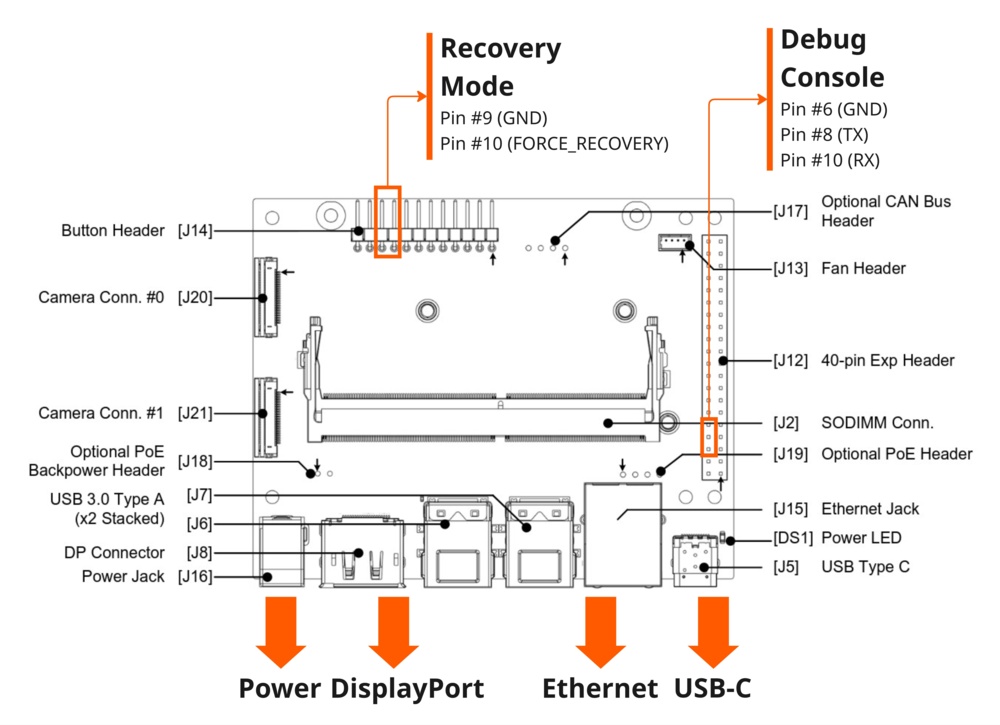
- Setup the board with cables as shown on the picture below.
- Connect the USB port to the host machine and put the target board into the recovery mode: short the FORCE_RECOVERY pin (labeled as FC_REC on the carrier board) to the ground, this can be done by installing a wired jumper to the contacts 9-10 of the J14 button header on the carrier board (refer to the Jetson Orin Nano Developer Kit Carrier Board Specification), then power on the board.
- Run the
doflash.shscript, inside the previously extracted folder:$ sudo ./doflash.sh - When the script finishes, remove the recovery mode jumper, and restart the board. Establish a serial connection with the board (e.g. using
picocom) and login with the default credentials. The default password for the usertorizonistorizon. You will be prompted to change it on the first login:$ picocom -b 115200 /dev/ttyUSBx - Create an account on https://app.torizon.io/.
- Go to the
Hardware > Devicestab and click "Provision Device" to connect your device to the Torizon Cloud. - Refer to the Remote Access article to learn how to access your device remotely over SSH through the Torizon Cloud. Check the Torizon Cloud documentation for additional features.
For more information, or if you want to build Torizon OS from source using Yocto, read the full documentation for NVIDIA boards available on the Torizon GitHub.
Run NVIDIA Docker
The NVIDIA container runtime is included in the jetson-orin-nano-devkit and jetson-orin-nano-devkit-nvme configuration images for Torizon.
Use docker run --runtime nvidia to run containerized NVIDIA applications. For example, to run the stable-diffusion tutorial from the NVIDIA Jetson AI Lab use the following command in Torizon:
sudo docker run --runtime nvidia -it --rm --network=host dustynv/stable-diffusion-webui:r36.2.0