First Steps with Torizon Remote Updates
Introduction
This article directs you through the steps on how to use the Torizon Remote OTA feature.
What is the Torizon Secure Remote Updates Feature?
Remote Updates is a feature of Torizon Cloud that delivers over-the-air (OTA) updates to devices running Torizon OS. It is an alternative to Torizon Secure Offline Updates, and both features share the same technology stack: OSTree and Aktualizr.
Read the Remote Over-the-Air Updates Overview for a broader view of the feature. For details about the underlying technologies, see the Torizon Updates Architecture.
Prerequisites
In order to perform remote updates, you should have:
- The Torizon OS images and/or application files for the updates readily available
- TorizonCore Builder installed on your host machine
- Account registered in the Torizon Cloud
- Device using Torizon OS provisioned on the same account
- Device configured for using remote update
- The credentials.zip file download from your Torizon Platform account section
First Steps
Create the Packages
The first step is to bring your OS Image/Application to the Torizon Cloud domain. Learn how Torizon manages Software Packages reading the Feature Overview
Create a Torizon Application Package from the web UI, TorizonCore Builder or an IDE with Extension for Torizon:
- Use the Torizon IDE Extension to Create a Container Project, or
- Select a Docker Compose file on your host machine from the Torizon Cloud Web UI, or
- Push a Docker Compose file to the Torizon Cloud with TorizonCore Builder
Remember that you also need to push your application to a Docker registry, so the device can download it.
To create a Torizon OS Package, you should use TorizonCore Builder to push images built by you or other collaborators. Remember, you can always use Toradex's provided images out-of-the-box.
Initiate the Update
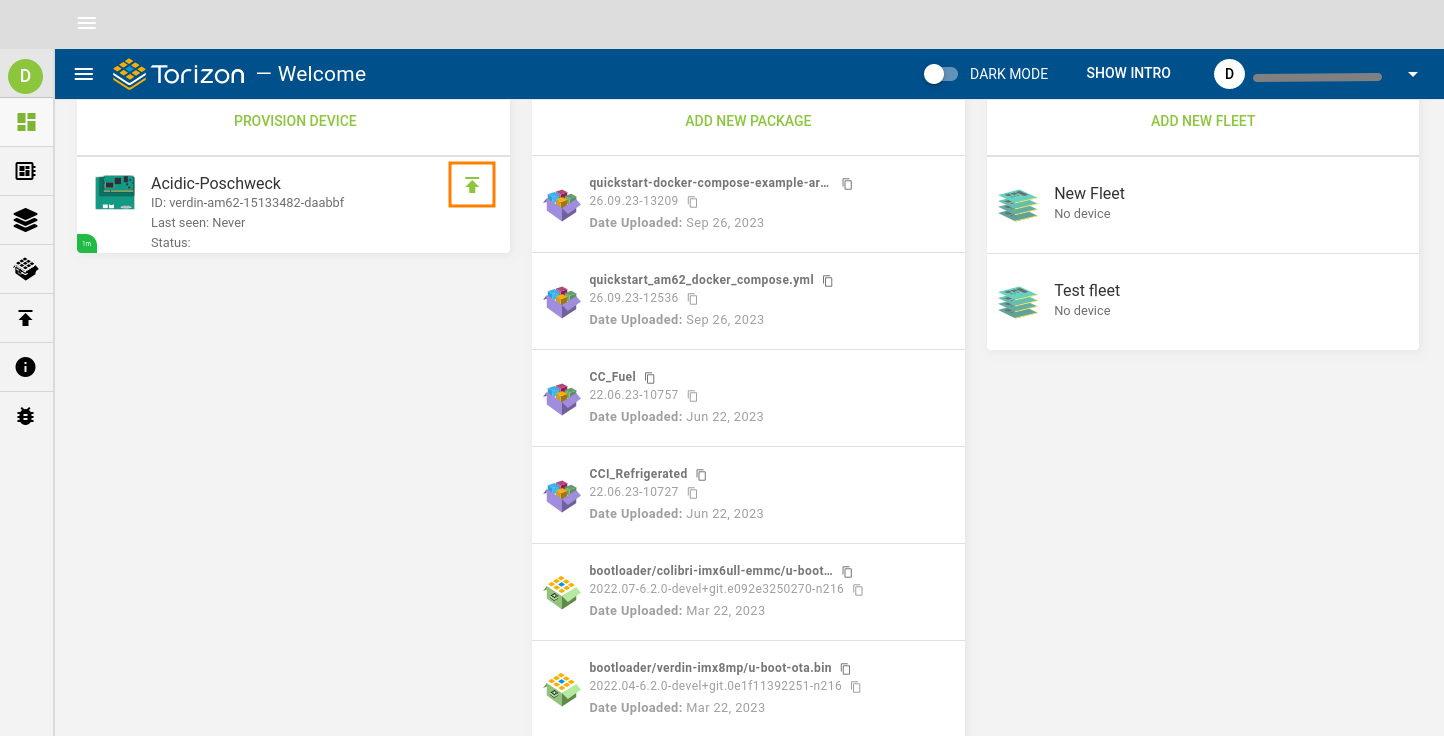
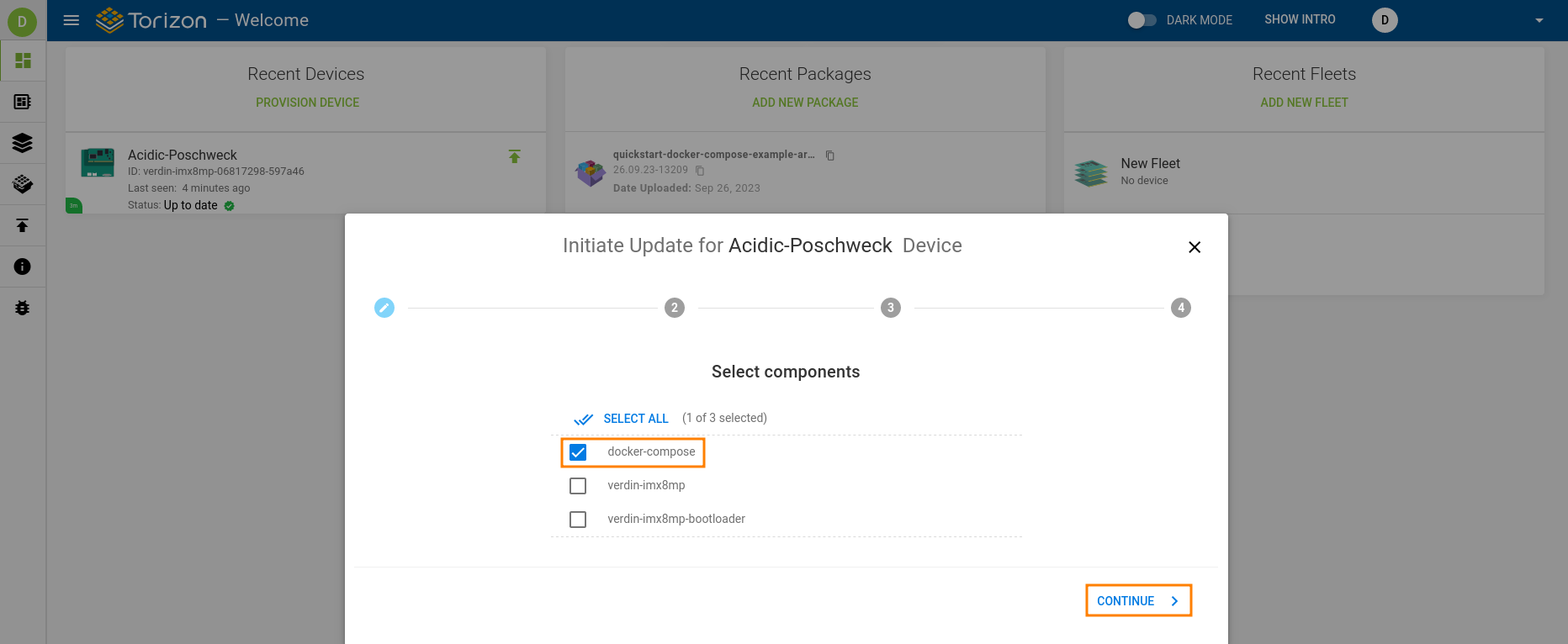
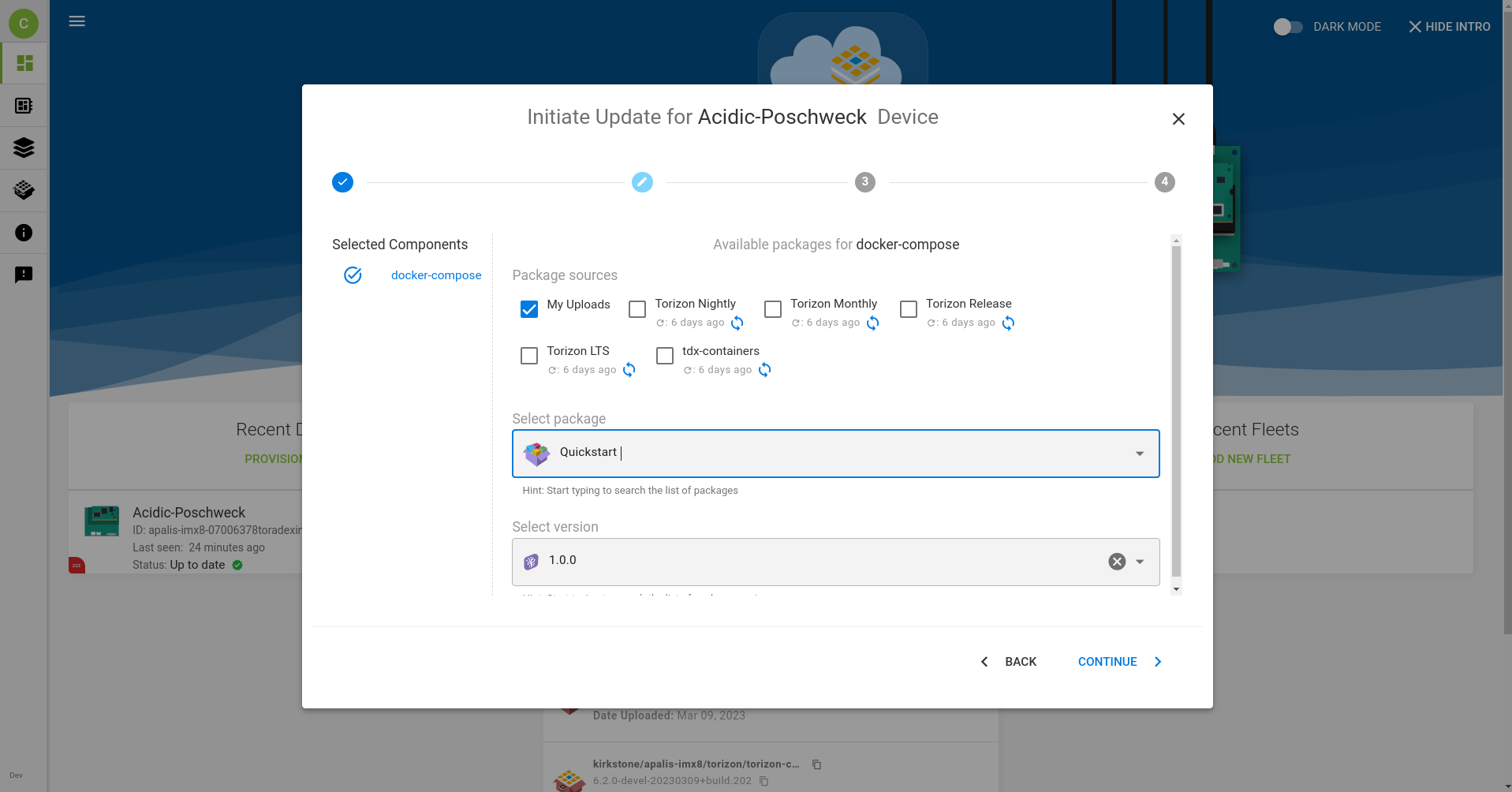
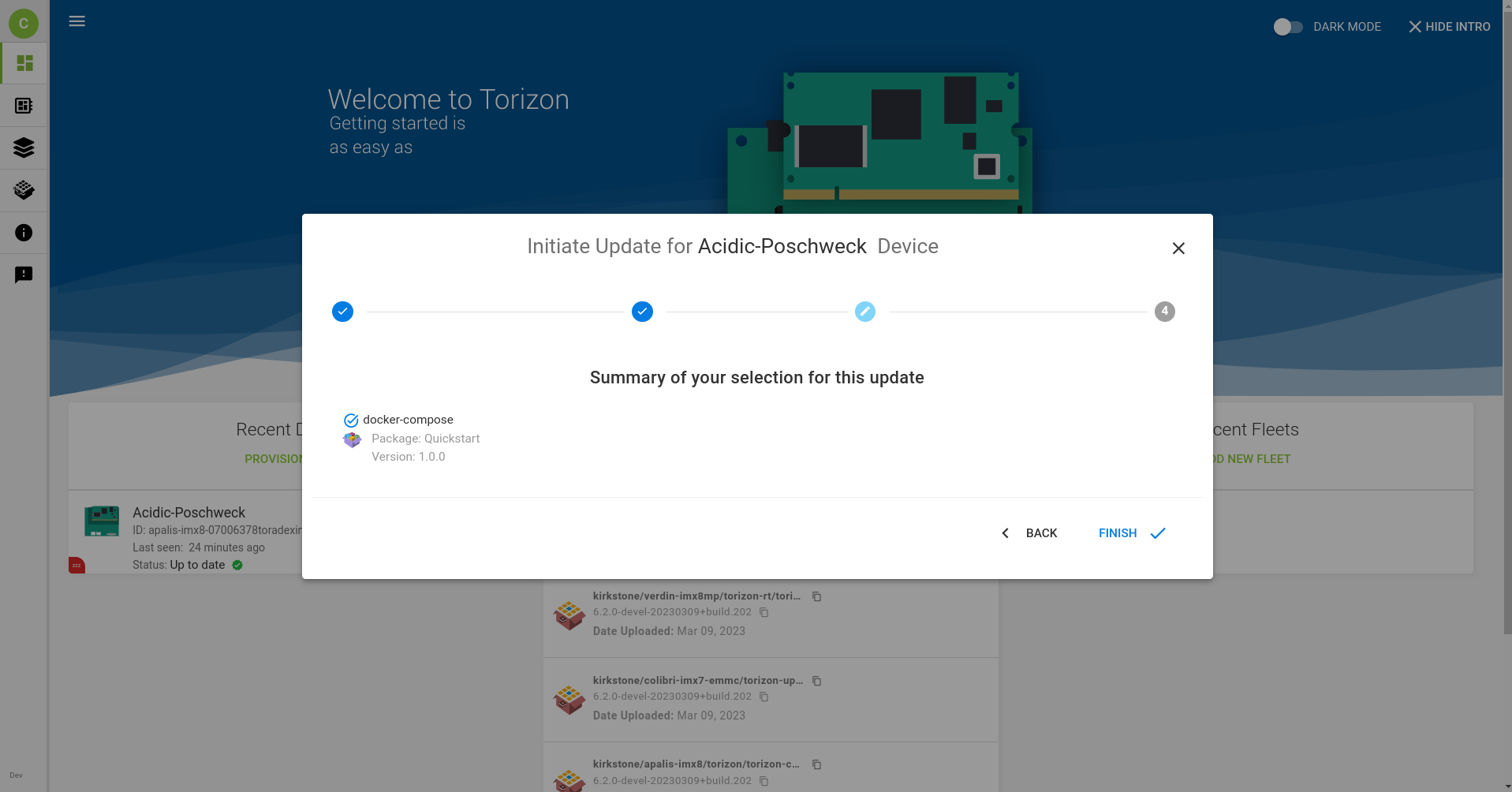
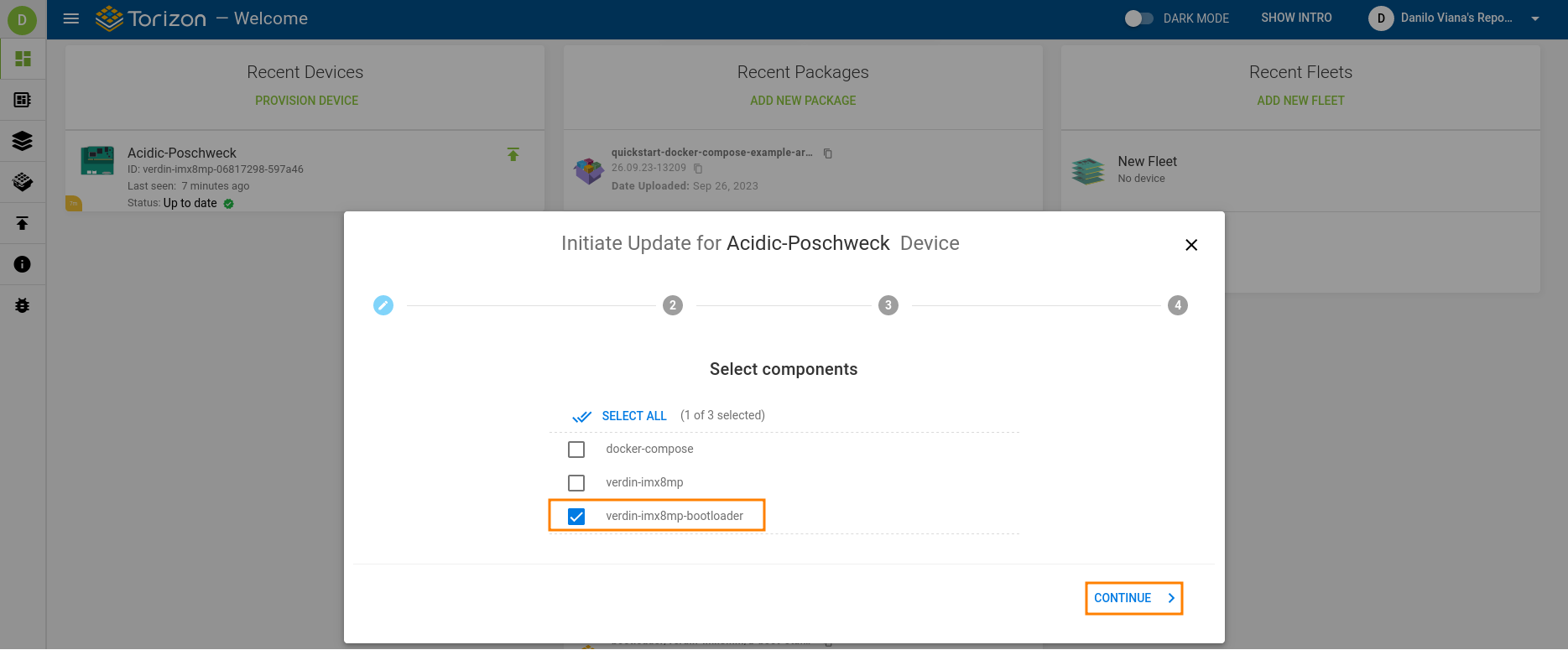
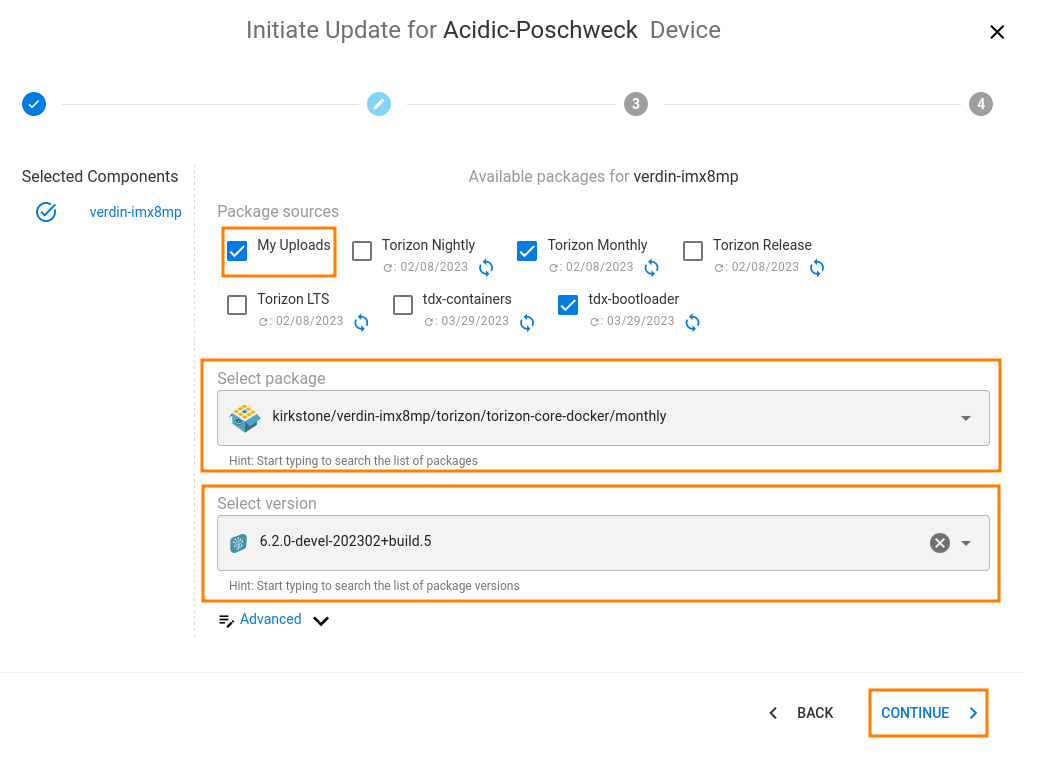
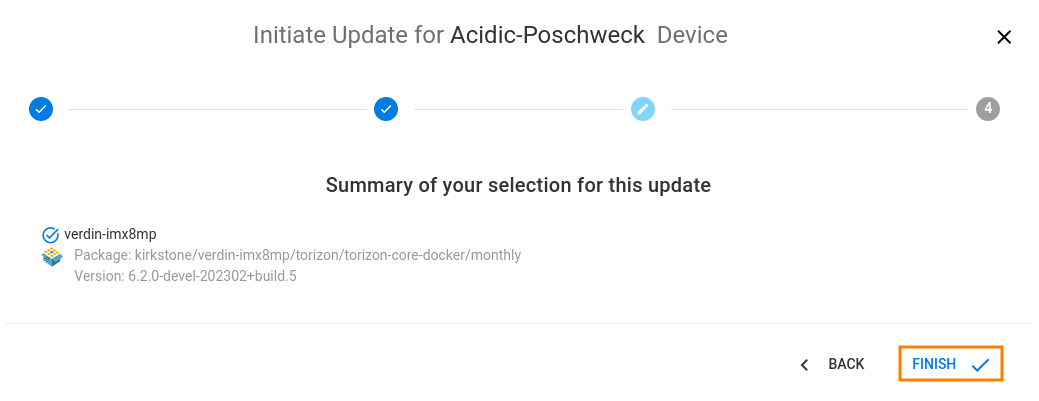
The next step is selecting the components in the Torizon Cloud. You can choose any supported software package: subsystem, bootloader, OS and/or Application to be updated in a single device or in an entire fleet. When you initiate an update, it means that the target device or the devices in a fleet have a new update to process when it goes online and reaches the Torizon Cloud.
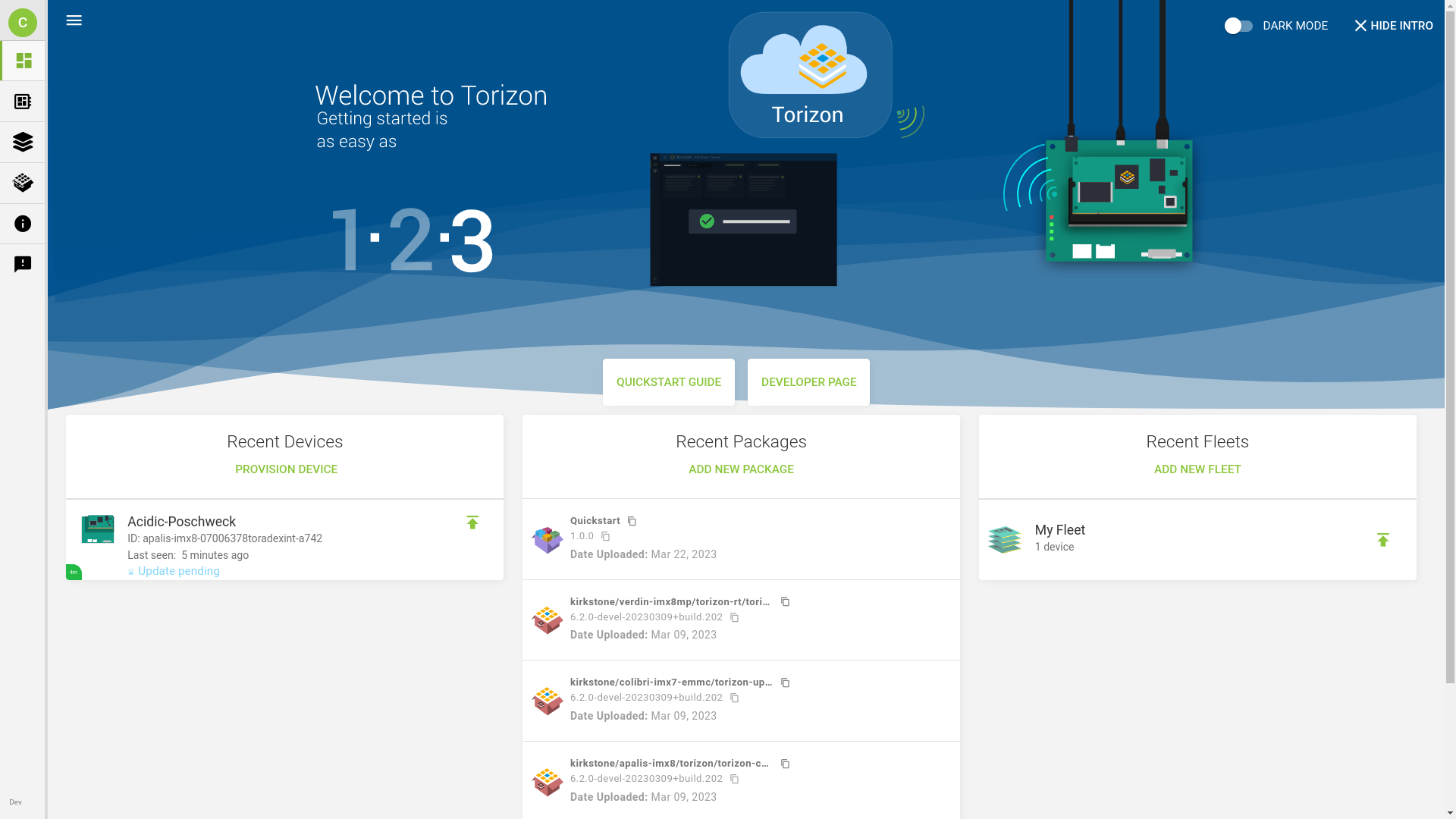
Update Application
Learn how to initiate an application update by checking the images following (click and slide or use the arrows):
Update OS
Learn how to initiate an OS update by checking the images following (click and slide or use the arrows):
Deploying the Remote Update
The provisioned devices periodically search for newly available instructions and update packages on the server. The next time any device addressed for updates goes online it downloads, validates, and deploys the update.
The update process is fully automated and no user intervention is required at any time, unless configured to do so. If you are performing an OS or synchronous update, the board automatically reboots once.
Control Updates on Target Device
You can allow and block updates on target device: