Torizon OS Updates Overview
Introduction
This article brings an overview about the OS Update procedure with Torizon Cloud and devices running Torizon OS.
When You Should Update
Toradex maintains updated software stack, including the bootloader, and Linux Kernel.
You can follow the Torizon OS Issue Tracker and the BSP Layers and Reference Images for Yocto Project Issue Tracker pages to get updated information about known issues, scheduled bug fixes, and feature improvements for every Torizon OS and BSP release. Remember that Torizon OS is built on top of the Toradex BSP.
Vanilla Torizon OS Packages
With the Torizon Cloud, you can update the Torizon OS version of the boards remotely with the latest periodical releases. To do that, when adding a new package, select the option "Custom Package" and then select the desired release type (Release, Monthly or Nightly) for the same base image that is currently installed.
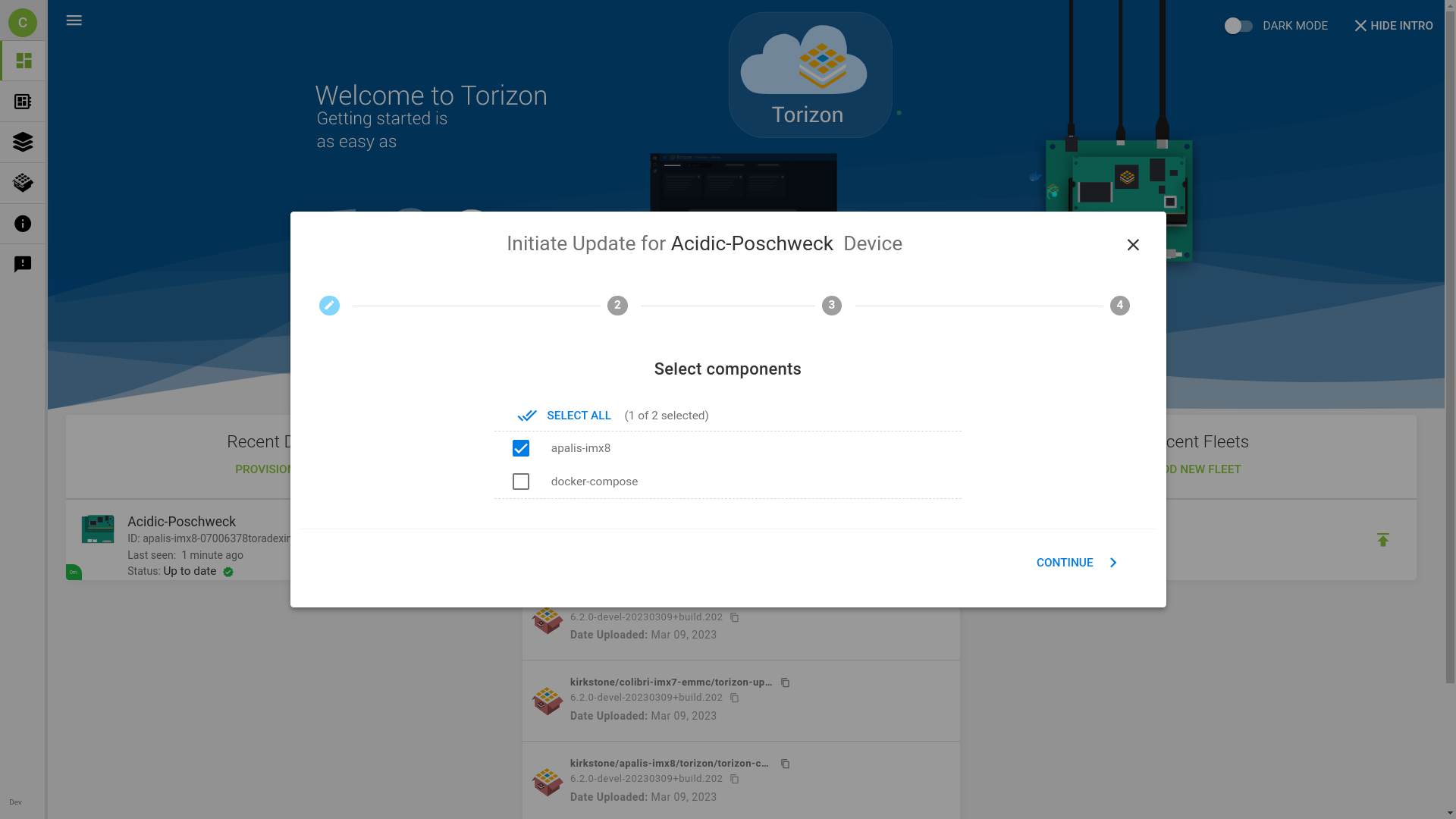
Custom OS Updates: Custom Torizon OS Packages
In some cases, when you need to customize the base Torizon OS image, the Torizon Cloud can receive your custom image and send its updates to your fleet of devices. Some examples where image customization is required include, but are not limited to:
- Adding new Hardware by customizing the system's device tree
- Changing the System's Splash Screen
- Capturing Changes in the Configuration of a Board
In this situation, a developer uses TorizonCore Builder Tool to generate a custom image.
Also, in some corner cases, the image re-building and customization are inevitable. Torizon OS is open source, and Toradex provides instructions to build Torizon OS with Yocto.
In any customization case, you can use Torizon Cloud to update the OS of your device in the field:
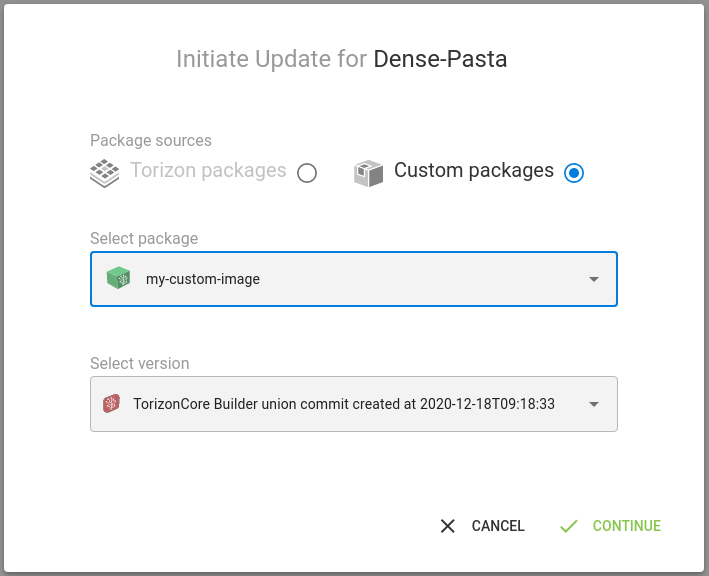
After generating a custom image, the developer needs to sign and upload it to the Torizon Cloud to be available as a package. Learn how to do that, in the Signing and Pushing Torizon OS Images to the Torizon Cloud article.
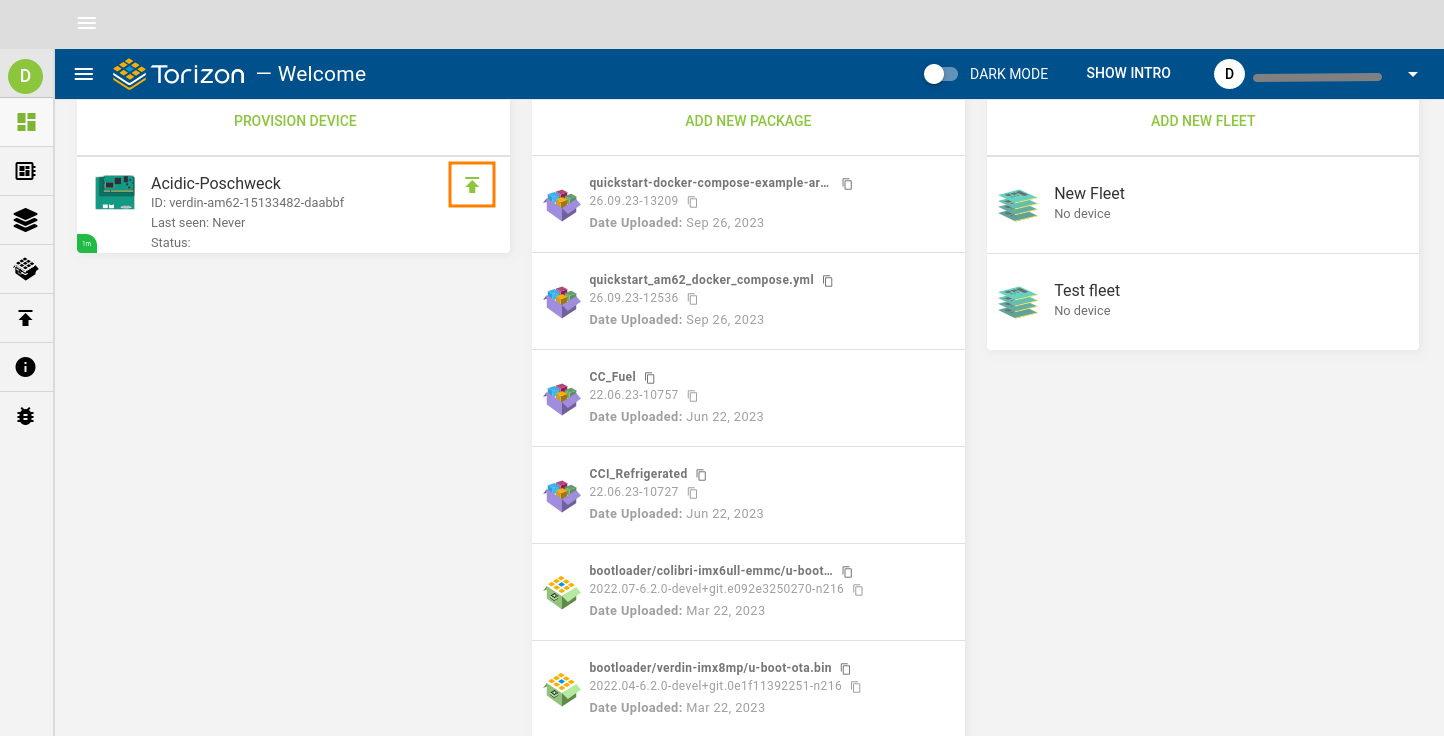
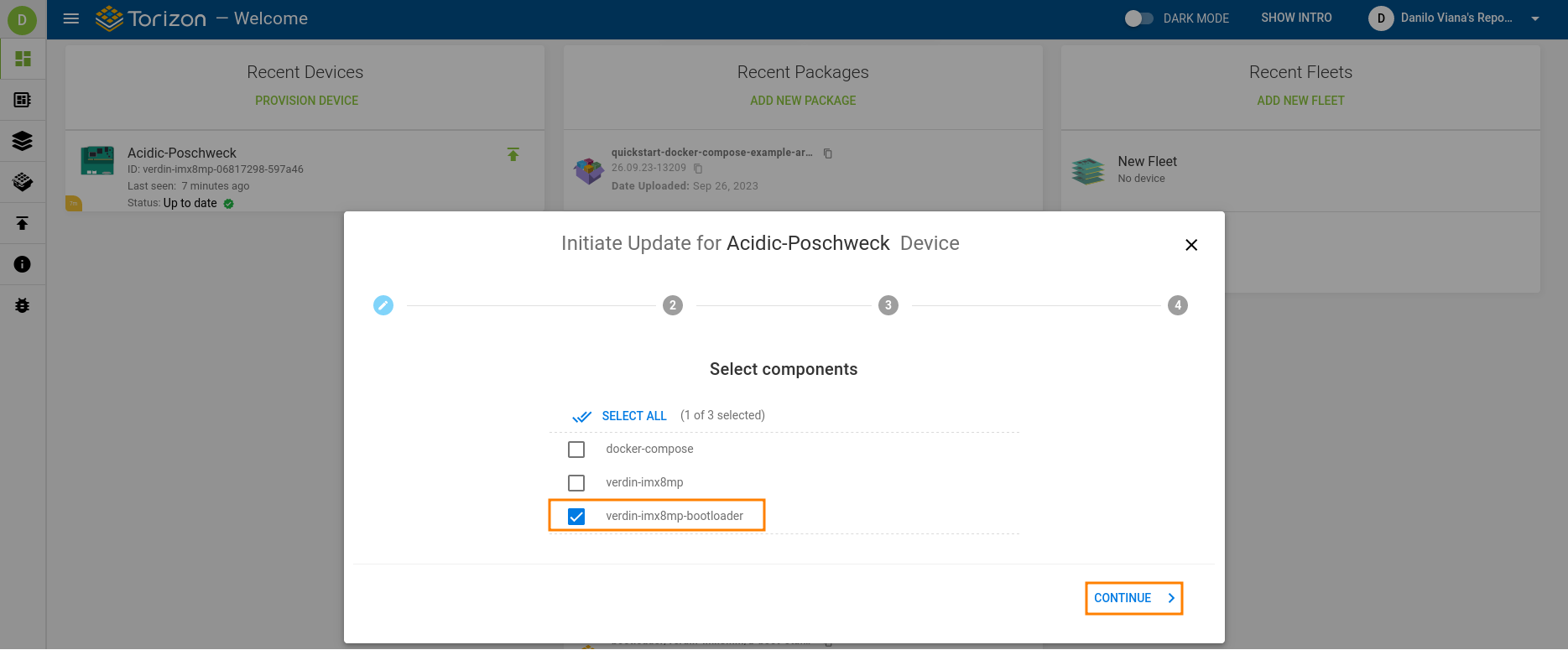
Update OS
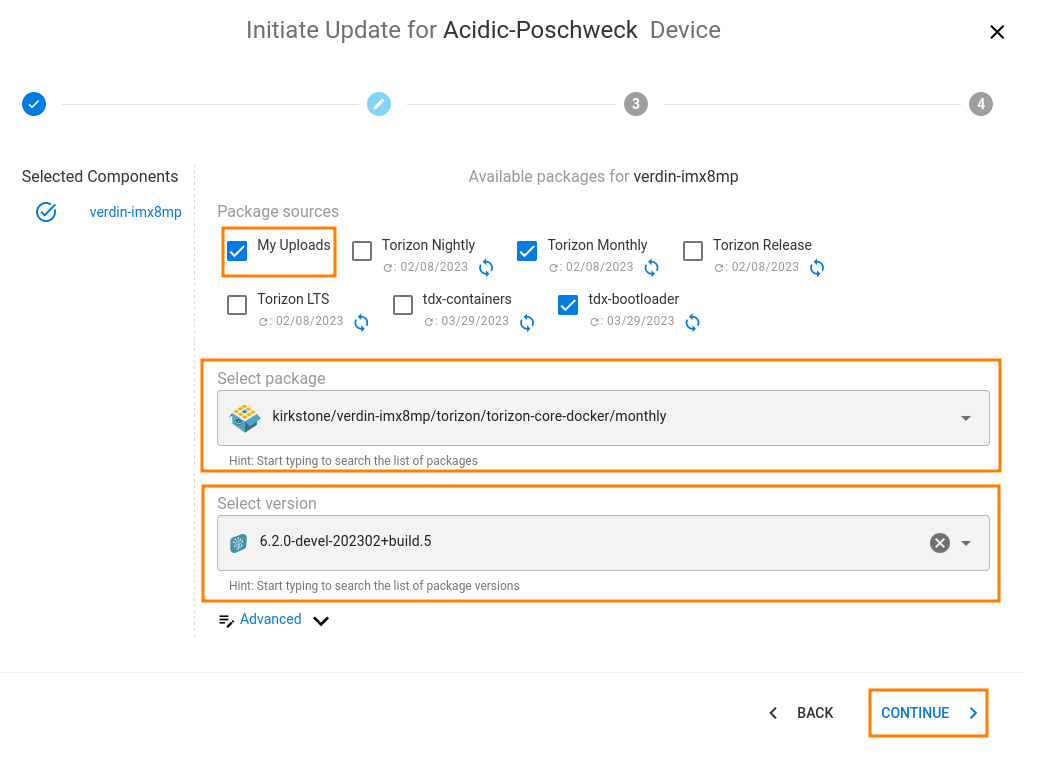
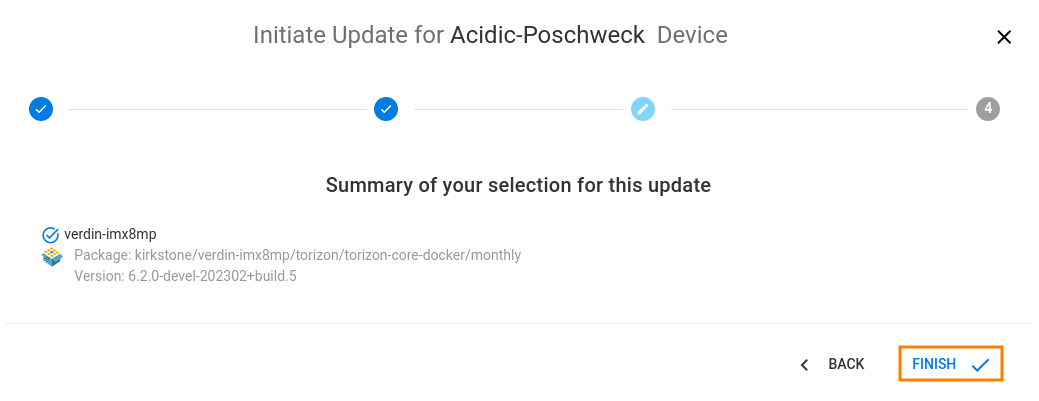
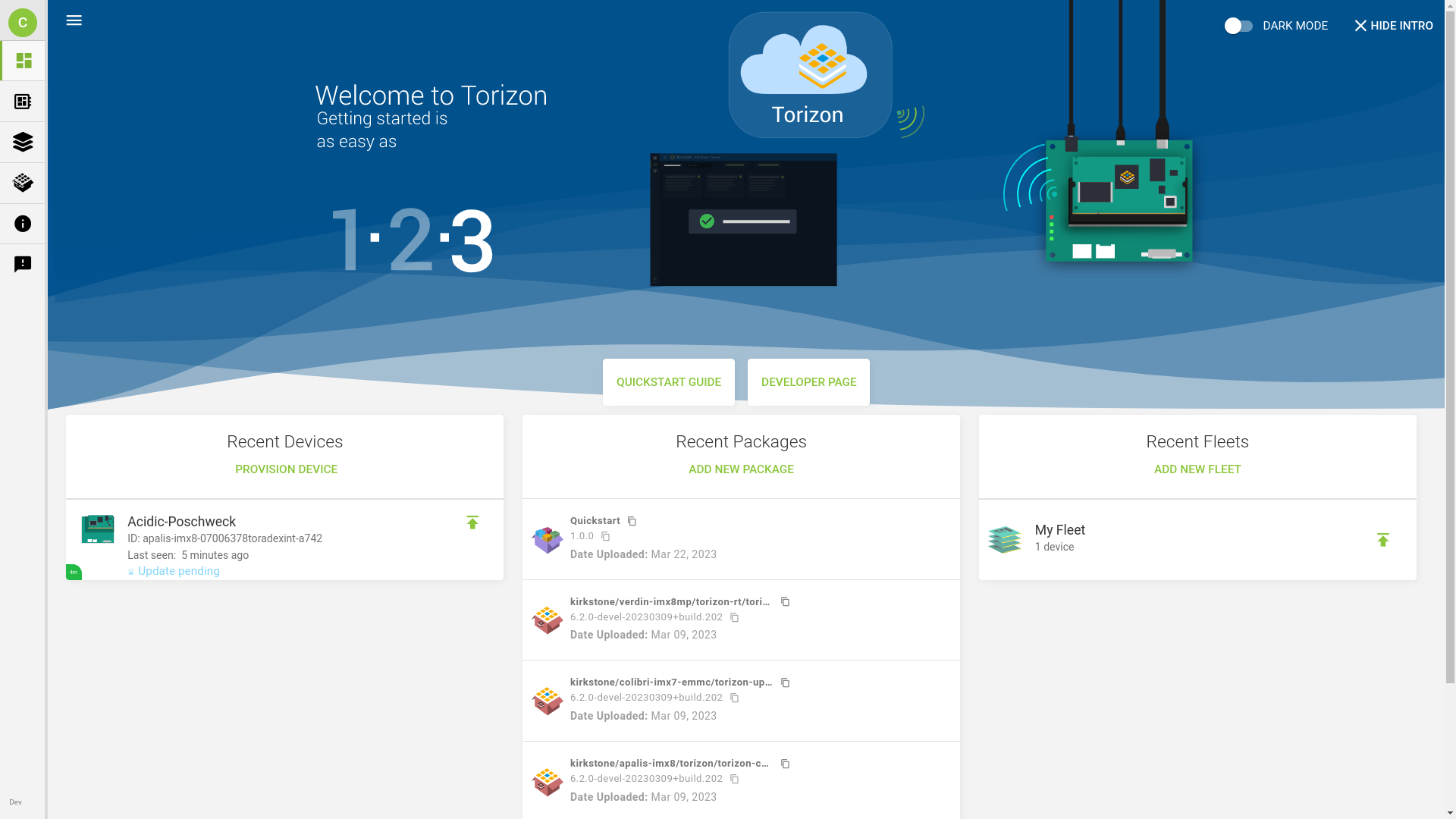
Learn how to initiate an OS update by checking the images following (click and slide or use the arrows):
Webinars
Toradex has presented webinars about Secure Offline and Online Updates and you can watch them on demand.
Secure Offline and Online Updates for Linux Devices
Learn more about this webinar on the landing page, or watch it following: