How to Use Subsystem Updates
Introduction
This article explains how to use Subsystem Updates, a Torizon Cloud feature for securely updating firmware on subsystems associated with a Torizon OS device. Aktualizr manages each subsystem as a secondary target alongside the operating system and application containers. A subsystem can be integrated into the module, such as a microcontroller core, or implemented as separate connected hardware.
Prerequisites
- Basic understanding of subsystem updates. Refer to Overview of Subsystem Updates article.
- Follow the steps described in First Steps With Subsystem Updates article.
- Basic understanding of Torizon Cloud features.
- Secondary device (subsystem) of your choice.
- A Toradex System-on-Module with Torizon OS installed.
Use Case: Subsystem Update in an Ai-Thinker ESP8266 12-E NodeMCU
This is just one example out of all possible use cases enabled by Subsystem Updates. Visit the Action Handler repository to learn about others.
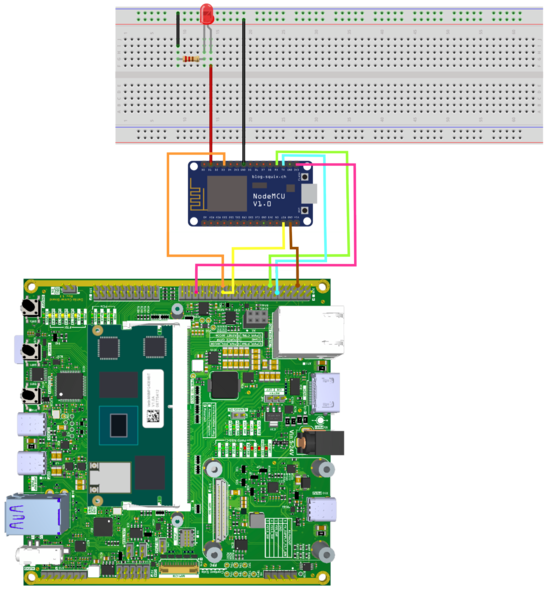
This section brings the use case of updating the firmware of a subsystem (Ai-Thinker ESP8266 12-E NodeMCU) connected via serial to a Toradex Verdin iMX8M Plus module. The project has the objective of simply controlling an LED blinking. The following image shows the setup of a Dahlia Carrier Board with the ESP8266 12-E NodeMCU and the Verdin iMX8M Plus.
Enable the ESP8266 12-E NodeMCU
After you configure Aktualizr as described in First Steps With Subsystem Updates, the secondaries.json file declares your target subsystem. This use case names it esp_firmware instead of the generic my-subsystem used in that article:
{
    "docker-compose": [
        {
            "partial_verifying": false,
            "ecu_hardware_id": "docker-compose",
            "full_client_dir": "/var/sota/storage/docker-compose",
            "ecu_private_key": "sec.private",
            "ecu_public_key": "sec.public",
            "firmware_path": "/var/sota/storage/docker-compose/docker-compose.yml",
            "target_name_path": "/var/sota/storage/docker-compose/target_name",
            "metadata_path": "/var/sota/storage/docker-compose/metadata"
        }
    ],
    "torizon-generic": [
        {
            "partial_verifying": false,
            "ecu_hardware_id": "verdin-imx8mp-bootloader",
            "full_client_dir": "/var/sota/storage/bootloader",
            "ecu_private_key": "sec.private",
            "ecu_public_key": "sec.public",
            "firmware_path": "/var/sota/storage/bootloader/u-boot.img",
            "target_name_path": "/var/sota/storage/bootloader/target_name",
            "metadata_path": "/var/sota/storage/bootloader/metadata",
            "action_handler_path": "/usr/bin/bl_actions.sh"
        },
        {
            "partial_verifying": false,
            "ecu_hardware_id": "esp_firmware",
            "full_client_dir": "/var/sota/storage/esp_firmware",
            "ecu_private_key": "sec.private",
            "ecu_public_key": "sec.public",
            "firmware_path": "/var/sota/storage/esp_firmware/firmware.bin",
            "target_name_path": "/var/sota/storage/esp_firmware/target_name",
            "metadata_path": "/var/sota/storage/esp_firmware/metadata",
            "action_handler_path": "/etc/my_custom_script/esp_firmware.sh"
        }
    ]
}
For the meaning of each key, refer to the Subsystem Updates Secondary Configuration documentation.
Configure the Firmware Update Instructions
The action handler performs the update. Its install action defines the commands that transfer the new firmware to the subsystem. These commands can run a container, as demonstrated in this use case. For a generic action handler, see Writing the Action Handler. For interface details, see Action Handler Interface.
Before creating the action handler file (esp_firmware.sh), create a script (update_script.sh) in the host machine with the mechanisms that provide the firmware to be updated.
#!/bin/sh

echo "Updating external firmware ..."
sleep 1

# Set the boot configuration, ensure that the ESP8266 is in firmware flashing mode (flash)
gpioset gpiochip0 0=1
gpioset gpiochip0 0=0
sleep 0.2

# Reset the ESP8266
gpioset gpiochip0 1=0
sleep 0.2
gpioset gpiochip0 1=1
sleep 0.2

# Load new firmware (flash)
esptool.py --port /dev/ttymxc0 write_flash -fm dio 0x00000 /esptool/firmware.bin
sleep 1

# Set the normal boot configuration again and restart
gpioset gpiochip0 0=1
sleep 0.2
gpioset gpiochip0 1=0
sleep 0.2
gpioset gpiochip0 1=1
sleep 1

echo "Success!"
This file is responsible for setting the ESP8266 into firmware flash mode, loading it through the ESPtool (recommended by manufacturers for this purpose), and restarting the device with the new firmware.
Then, in the host terminal, the execution permission is added to the script:
$ chmod +x update_script.sh
To enable this update to occur automatically, configure a container to perform the steps of the update_script.sh file. Thus, the following Dockerfile should be created in the host machine in the same directory as update_script.sh, configuring the container environment and including all the necessary dependencies for the ESPtool:
FROM torizon/debian:4
RUN usermod -a -G gpio torizon

#Install applications to be used within the container
RUN apt update && apt install -y --no-install-recommends \
    python3 python3-pip gpiod libgpiod2 && \
    apt-get clean && apt-get autoremove && \
    rm -rf /var/lib/apt/lists/*

#Install the ESPTool
RUN pip3 install --no-cache-dir --break-system-packages esptool==4.12.0

#Set our working directory
WORKDIR /esptool

#Copy our update file into the container and allow it to be executed
COPY update_script.sh /esptool
RUN chmod +x /esptool/update_script.sh

#Run our update script
CMD [ "/esptool/update_script.sh" ]
To build the container in the host machine, enable the Arm emulation and build the image for the architecture of the module, in the same directory as the Dockerfile:
$ docker build --platform linux/arm64/v8 -t <docker_user_name>/esp_flasher:arm64 .
Then, push the image to Docker Hub so that the device can pull it during the update:
$ docker push <docker_user_name>/esp_flasher:arm64
Finally, create the action handler esp_firmware.sh:
#!/usr/bin/bash
# ---
# Main program
# ---
case "$1" in
    get-firmware-info)
        # Perform normal processing for this action.
        echo "ACTION HANDLER: get-firmware-info"
        exit 64
        ;;
    install)
        # Perform normal processing for this action.
        if docker run --rm -v /dev:/dev -v "$SECONDARY_FIRMWARE_PATH":/esptool/firmware.bin \
            --device-cgroup-rule='c 207:16 rmw' --device-cgroup-rule='c 254:* rmw' \
            <docker_user_name>/esp_flasher:arm64 > /var/logs; then
            echo '{"status": "ok", "message": "Container executed"}'
        else
            echo '{"status": "failed", "message": "Could not flash the ESP8266 firmware"}'
        fi
        exit 0
        ;;
    complete-install)
        # Perform normal processing for this action.
        echo "ACTION HANDLER: complete-install"
        exit 64
        ;;
    *)
        # Perform normal processing for this action.
        echo "ACTION HANDLER: ERROR event $1 not supported"
        exit 64
        ;;
esac
Make sure to replace <docker_user_name> with your Docker Hub username, and check that the name and tag, esp_flasher:arm64, match those defined during the build.
Create the directory for the action handler on the device:
# sudo mkdir -p /etc/my_custom_script
Save the file on the device at /etc/my_custom_script/esp_firmware.sh, the path configured in the action_handler_path key, and make it executable:
# sudo chmod +x /etc/my_custom_script/esp_firmware.sh
The install action reports the failed status if the container exits with an error, preventing an unsuccessful firmware flash from being recorded as a successful update. The handler exits with status code 0 regardless of the result because Aktualizr reads its output only when it returns this code. The handler also redirects the container output to a file because its standard output must contain only the JSON result.
After completing these steps, you can now deploy subsystem firmware updates through the Torizon Cloud.
Update in Torizon Cloud
After logging in to Torizon Cloud, follow the steps to proceed with the subsystem update. If you do not have an account, sign up for free or choose one of the plans. Check the plans for more details.
Provision the SoM
First, provision the System on Module in Torizon Cloud. In the dashboard sidebar, select Provision Device. On the page that opens, copy the provided Docker command and run it in the SoM terminal. The command provisions the device and enables it to report metrics to Torizon Cloud. After provisioning, the device appears in the device list.
The following video demonstrates this procedure:
Add the Firmware Package
To add the new firmware, use the middle column on the platform, select Add new package, and then choose the Other option. The firmware used may vary depending on the secondary device. Some changes can be made according to preference, such as the name, and version of the files.
Update the Firmware
To initiate an update for the device, click the start arrow in the Dashboard Recent Devices column. Then, select the secondary device to be updated, and choose the package to be installed on it. The previously loaded packages in the Torizon Cloud system appear after selecting the My Uploads box. Choose the package version, then confirm the update.
For more information about the update status, select the More info option in the Update Status section. All the steps from the download to the installation of the new package are displayed.