NVIDIA Hardware Support
- Jetson Orin Nano Developer Kit (NVMe or SD card)
- Jetson AGX Thor Developer Kit (T5000)
How to Get Started
The installation process is similar for both developer kits. Follow these steps to flash a Torizon OS image onto your NVIDIA board:
-
Download the appropriate Torizon OS image from the Toradex Download Links page. Each package is a
.tegraflash-tar.zsttarball that bundles the NVIDIA initrd installer, the bootloader image for the QSPI flash, and the OSTree-based Torizon OS root filesystem.dangerMake sure to download the correct image for your specific NVIDIA board. Do not attempt to flash an image intended for a different NVIDIA SKU onto your device. Although it may be possible to bypass the compatibility checks, doing so can corrupt the QSPI and brick the device.
-
After the download completes, unpack the package into an empty directory, replacing the
<package>placeholder with the name of the file you downloaded:$ mkdir -p ~/flashing && cd ~/flashing
$ tar --zstd -xf <package>.tegraflash-tar.zstUnpacking the JetPack 6.2.0 Image
The JetPack 6.2.0 image for the Jetson Orin Nano is a gzip tarball. Unpack it with
tar -xf <package>.tegraflash.tar.gz. -
Before flashing the image, check the extracted root filesystem. The following command must complete without errors:
$ e2fsck -fn torizon-docker.ota-ext4warningThe root filesystem is a large sparse image, so a missing
zstdbinary, insufficient free disk space, or atarimplementation that mishandles sparse files can silently produce a truncated file. Although that file may flash without errors, the board then fails to boot because the journal lies past the truncation point. In this case, the boot process hangs with messages similar to the following:EXT4-fs error (device nvme0n1p1): ext4_get_journal_inode: inode #8: comm mount: iget: checksum invalid
EXT4-fs (nvme0n1p1): no journal foundIf
e2fsckreports a corrupt journal or a short read, the extraction is incomplete. Installzstd, free up disk space, extract the package again, and repeat the check before you continue. -
With the image ready, put the board into recovery mode and connect its USB Type-C port to the host machine. The port location and recovery procedure depend on the board:
- Jetson Orin Nano Developer Kit
- Jetson AGX Thor Developer Kit
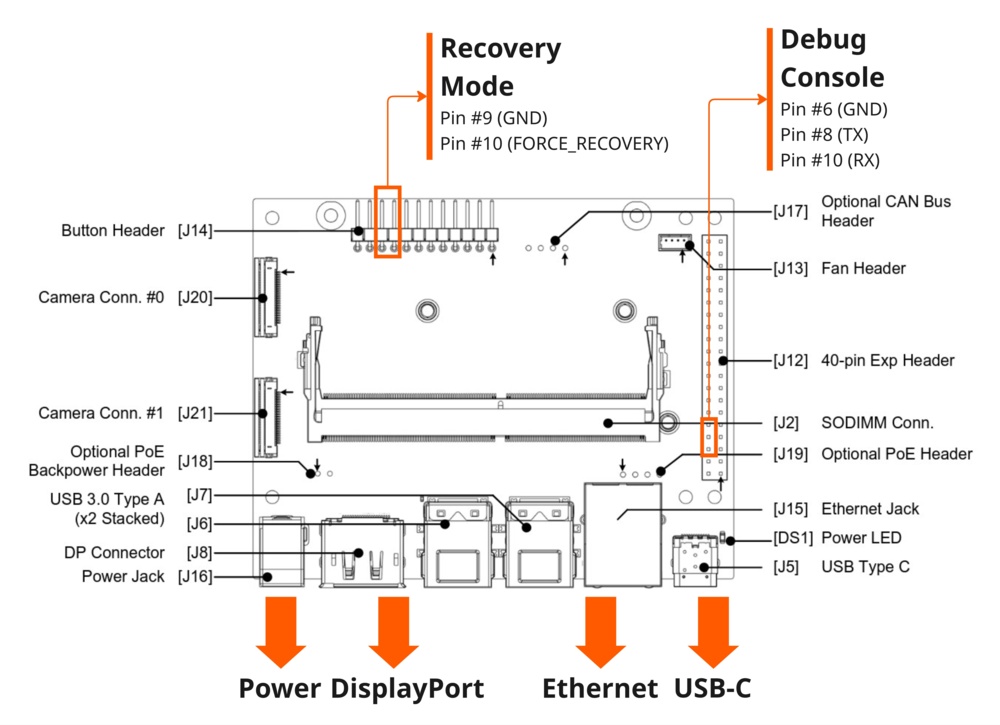
On this board, a header jumper controls recovery mode instead of a button:
- Make sure the developer kit is powered off.
- Connect a jumper across the
FORCE_RECOVERY(FC_REC) andGNDpins, which are the contacts9-10of theJ14button header. - Connect the
J5USB Type-C port to the host machine and power on the board.

For the header pinout, refer to the Jetson Orin Nano Developer Kit Carrier Board Specification.
First, connect the flashing cable to the
J81USB Type-C port. Then, put the board into recovery mode:
- Make sure the developer kit is powered off.
- Press and hold the
Force Recoverybutton. - Press, then release the
Resetbutton. - Release the
Force Recoverybutton.

For further board details, refer to NVIDIA's Jetson Developer Kit flashing guide.
-
Once the board is in recovery mode, confirm that the host machine detects it:
$ lsusb -d 0955: -
After confirming the connection, run the flashing script from the unpacked directory:
$ sudo ./initrd-flashFlashing the JetPack 6.2.0 Image
The JetPack 6.2.0 image for the Jetson Orin Nano uses the older flashing script. Run
sudo ./doflash.shinstead. -
When the script finishes, power off the board and take it out of recovery mode. On the Jetson Orin Nano Developer Kit, remove the jumper you connected previously. Then, power the board on again.
-
On the first boot, establish a serial connection with the board, for example, by using
picocom:$ picocom -b 115200 /dev/ttyUSBxLog in with the default username,
torizon, and password,torizon. When prompted, update the password to complete the first login. -
With the board running, create an account on the Torizon Cloud.
-
In the Torizon Cloud, go to
Hardware > Devicesand click the Provision Device button to connect your device. -
After provisioning the device, follow the Remote Access guide to connect to it over SSH through the Torizon Cloud. To explore what else you can do with your device, refer to the Torizon Cloud documentation.
Refer to the NVIDIA board documentation on GitHub for additional details, including how to build Torizon OS from source with the Yocto Project.
Run NVIDIA Containers
The engineering pre-release Torizon OS images for NVIDIA Jetson machines include the NVIDIA container runtime, so you can use --runtime nvidia to give a container access to the GPU. You can find CUDA and other GPU-accelerated container images on the NVIDIA NGC Catalog.
# docker run --runtime nvidia -it --rm --network=host <your-cuda-image>
Torizon OS images built from source with the Yocto Project, as described in the NVIDIA board documentation on GitHub, do not include nvidia-container-toolkit or GPU userspace libraries.
On those images, pass the device nodes to the container yourself and provide the matching NVIDIA L4T userspace, such as CUDA and EGL/GLES, in the container image.