Build, Test and Push Applications for Production
Introduction
The Torizon IDE Extension offers multiple tasks for managing application containers after the debugging phase is complete:
- Build and Test Release Container Images: The
run-container-torizon-release-<arch>task automatically removes debug configurations, builds, and runs the container on your target device with only the essentials for the application. - Prepare your Application Container for Production: The
create-production-imagetask builds a release container image and pushes it to a container registry, like DockerHub. It also creates adocker-compose.prod.ymlfile. - Build and Push Applications to Torizon Cloud: The
tcb-platform-publishtask runs thecreate-production-imageone and pushesdocker-compose.prod.ymlto Torizon Cloud as an application package.
Prerequisites
-
For building container images:
-
For pushing images to DockerHub:
- Configure an account on DockerHub or another container registry.
-
For pushing to Torizon Cloud:
Build and Test Release Container Images
You can build and run containers through the run-container-torizon-release-<arch> task, which performs the following steps:
- Build a container image based on
Dockerfile. - Push the container image to the local container registry (localhost:5002).
- Pull the container image to your SoM set as the default target.
- Run the container on your SoM using the
docker-compose.ymlconfiguration.
When debugging applications, the container is built based on Dockerfile.debug. That file contains additional dependencies and settings to enable remote debugging on VS Code. Instead, the run-container-torizon-release-<arch> task builds the container with only the essential configuration. You can use that task to test your application before moving it to production.
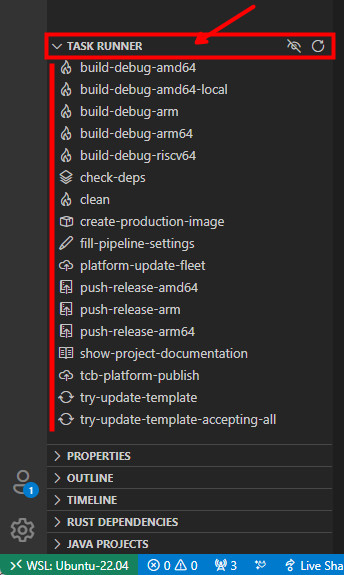
To run run-container-torizon-release-<arch> task, follow the steps below:
- Click on the
Explorericon located on the VSCode Activity bar. - Open the
TASK RUNNERtab. - Click on the task.
Prepare your Application Container for Production
The create-production-image task performs the following steps:
- Build a container image based on
Dockerfile. - Push the container image to a container registry, such as DockerHub.
- Create the
docker-compose.prod.ymlfile.
The docker-compose.prod.yml file is automatically created based on docker-compose.yml:
- The
-debugservices are removed. - Environment variables, such as
DOCKER_LOGINandTAG, are replaced with user inputs. - The
buildconfiguration is removed.
You can use the .yml file to create application packages on Torizon Cloud.
Do not edit the docker-compose.prod.yml file. To change the rules or services of docker-compose.prod.yml, edit the docker-compose.yml file and run the create-production-image task again.
When triggered, the create-production-image task requires the following inputs:
-
Docker registry: The container registry to which the task pushes the image. If empty, the task uses DockerHub. However, you can use any other registry, like GitHub and Azure.
-
Docker registry user login: The task uses the user login to set the image's name, which will be
userLogin/applicationName:dockerTag. -
Docker registry password: the Docker registry password or token to use to push the image to the container registry. This will be stored as a secret in the VS Code vault.
-
Docker tag to use in the production image: The container tag. The image name will be
userLogin/applicationName:dockerTag. -
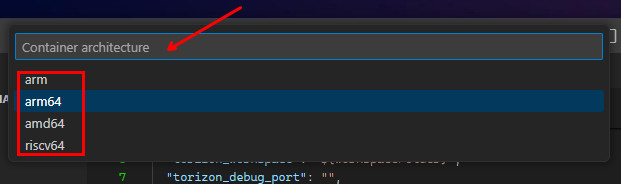
Container architecture: The platform architecture to which the task compiles the container. Select the architecture that matches your target device.
Some inputs – such as the container tag – are not requested again if previously set. To change input values, edit .vscode/settings.json. For input details, see Workspace Settings.
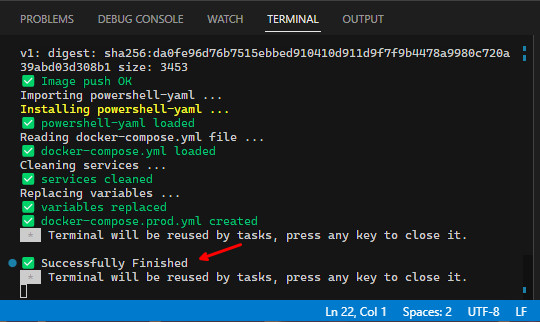
At the finish of the task, the VS Code terminal should display the following message:
Build and Push Applications to Torizon Cloud
You can push applications to Torizon Cloud directly from the Torizon IDE extension. The tcb-platform-publish task runs create-production-image and pushes the docker-compose.prod.yml file to Torizon Cloud, creating a new application package.
Before running the tcb-platform-publish task, proceed as follows:
- Get Torizon Cloud credentials.zip.
- Place the credentials.zip file in the root directory of your project (where
Dockerfileanddocker-compose.ymlare located).
When triggered, the tcb-platform-publish task requires the following inputs:
- The
create-production-imageinputs described in the previous section. - Torizon Cloud API v2 Client ID.
- Torizon Cloud API v2 Client Secret.
See Creating a New Torizon Cloud API v2 Client for information about the API credentials.
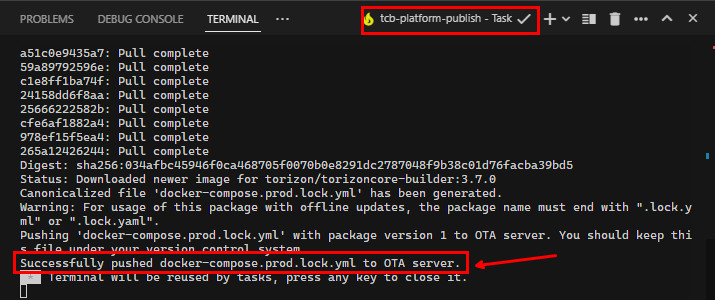
At the finish of the task, you should see the following message in the terminal tab:
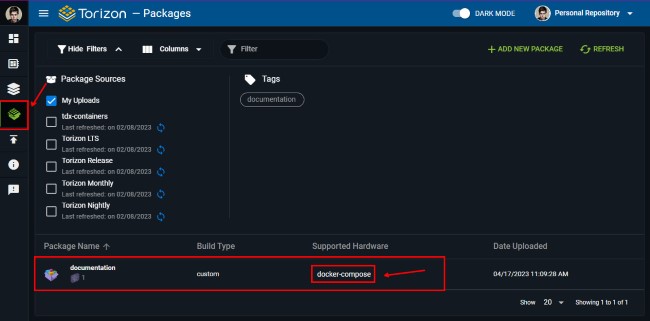
The application package will be available on Torizon Cloud:
Troubleshoot Execution Errors - Production
Check the Debug and Deploy section.